
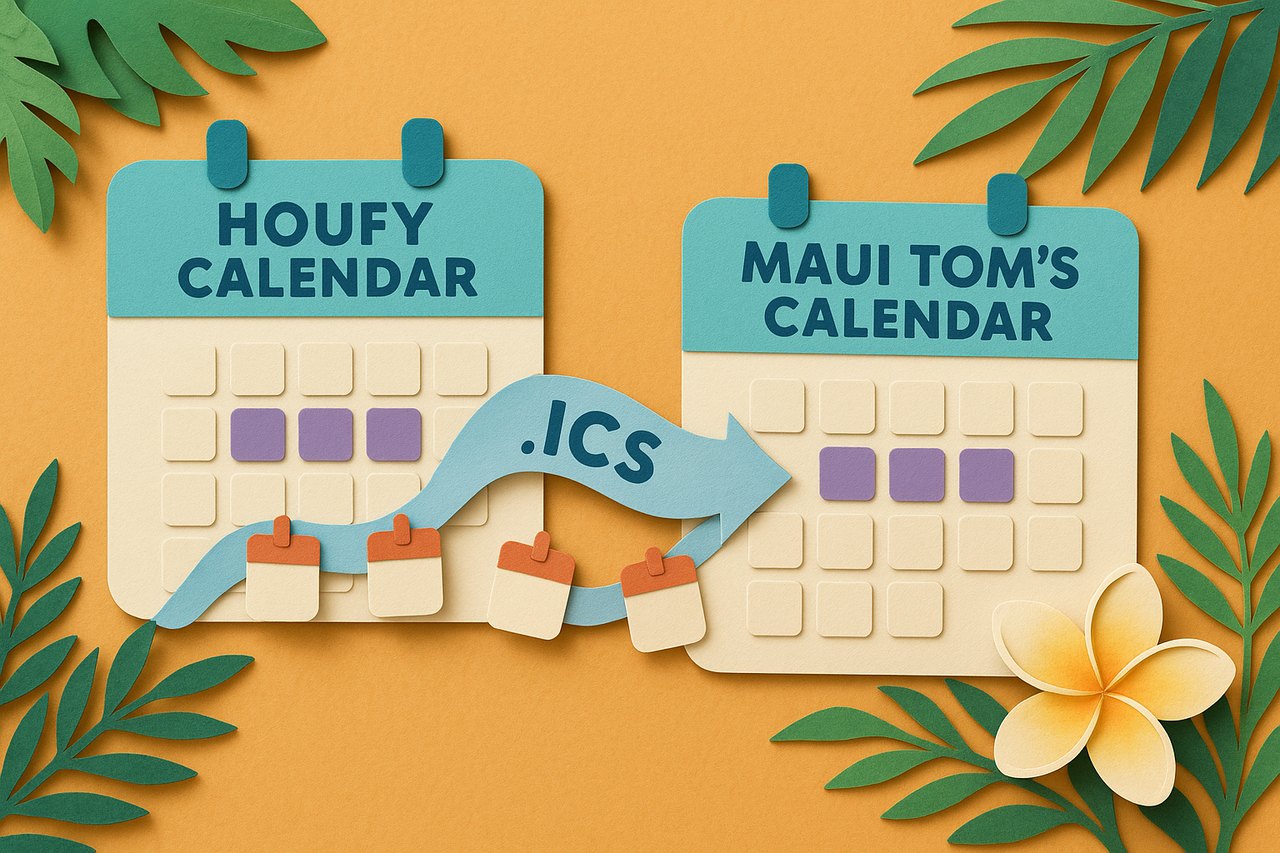
Book direct on Houfy? Connect your Houfy calendar to Maui Tom’s and your turnover cleans schedule themselves for every checkout. Here’s how to copy your Houfy iCal link.
-
Open your Houfy listing
Go to your Houfy listing and select the Calendar tab. (Your listing must be live to export.)
-
Open Import & Export
Click Import & Export.
-
Export your calendar
Click Export Calendar.
-
Copy your link
Click Copy URL — that’s your iCal link.
-
Paste it into your Maui Tom’s account
Paste the link into the calendar field for your property in your Maui Tom’s account — during onboarding, or later from your profile.
Run into trouble? Houfy occasionally updates their layout. If these steps don’t match what you see, check Houfy’s official calendar-sync guide for the latest.
How Maui Tom’s connects to your calendar
Once your Houfy calendar is linked, Maui Tom’s syncs your bookings automatically and schedules professional turnover cleaning for every checkout — so your Maui vacation rental is always spotless and guest-ready, without you lifting a finger. Update your calendar on Houfy and we stay in step.